PlayStation 2 on desktop
Play PS2 games on PC HD output, one clear download path, and setup you can follow step by step.
PCSX2 is the emulator the community trusts. We don’t host installers—shortcuts point to the upstream project’s releases.
Next: your BIOS (from your console), then Vulkan or D3D12—usually under 15 minutes if your PC meets requirements.
Snapshot
Plain facts—clear provenance.
Plain facts—so you know what you’re installing and where it comes from. Below, every tile uses the same order: category, figure, detail.
Articles
5000+
Articles · community-maintained
Playability
~98%
Playable titles · community estimate
License
Open source
GPL · code on GitHub
Platforms
3
Windows · Linux · macOS
On this site
Everything in the nav—explained.
PCSX2 is the open-source PlayStation 2 emulator for Windows, Linux, and macOS. This site is a fan-written guide: downloads, setup, support, compatibility basics, and links to the open-source project—all in one place.
FAQ
BIOS rules, builds (stable vs nightly), discs vs images, performance basics, and where the project stands on support.
Read answersResources
Site map plus trusted third-party channels the project uses (for example GitHub and social).
Open hubCompatibility
How to read status labels, why serials matter, and how compatibility notes plus a public database save you from guessing whether a title will boot.
Learn the workflowDownload, setup, support
Download links to the project’s GitHub releases for each platform. Setup walks BIOS (from hardware you own), game paths, controllers, and a sane first graphics choice. Support covers the usual crashes, black screen, and speed issues with fixes that match what maintainers see in the wild.
Features worth knowing
Modern renderers (Vulkan, D3D12, Metal on macOS), internal resolution beyond 480p, save states, per-game settings, and wide controller support are the headline reasons people move from hardware to emulation. The Features page breaks those down without drowning you in jargon.
For hardware expectations, pair this with Requirements and Community tips—real-world GPU and CPU picks from people who run the emulator daily.
Why this emulator
PCSX2 in context—what it is and who it’s for
The PlayStation 2 library is huge and varied: JRPGs, racers, fighters, and experimental titles that rarely see official re-releases. PCSX2 is the main way to preserve and play that library on a modern PC with better resolutions, save states, and controller options—without replacing the need to own your games and BIOS where the law requires it.
Accuracy and pace of improvement
The project ships stable releases for everyday play and nightly (or PR) builds when you need a specific fix. Graphics backends (Vulkan, D3D12, Metal on macOS) are actively maintained; many games that were difficult years ago now run at full speed on mid-range hardware.
Community knowledge
Per-game quirks, hacks, and renderer notes are documented across the ecosystem. A public compatibility database can help you sanity-check a title before you spend an evening tweaking settings.
What this site adds
We don’t host installers or BIOS here—we compress the onboarding story: how to order BIOS → game list → graphics → audio, and what to try when something crashes or stays black. For depth, use the Download, Setup, Compatibility, and FAQ sections here.
First hour
A practical order of operations
You can deviate anytime, but this sequence matches how experienced users walk newcomers through support chats—fewer dead ends, less “I changed twelve settings and nothing works.”
-
01
Install a stable build
Follow our download hub for safe sourcing. Avoid bundled “emu packs,” and keep a stable build around even if you try nightlies later.
Download hub -
02
BIOS from your console
For most retail games you need a BIOS dump that matches your discs’ region family. The emulator does not ship BIOS files; follow project guidance and your local laws.
FAQ: BIOS -
03
Add games to the list
Point the game list at folders holding ISO, BIN/CUE, or CSO. Confirm the rip isn’t truncated—bad dumps cause mysterious hangs.
Setup guide -
04
Pick one graphics backend
Start with Vulkan or D3D12 on Windows; try the other if you see GPU-specific glitches. Raise internal resolution only after you hit full speed.
Features -
05
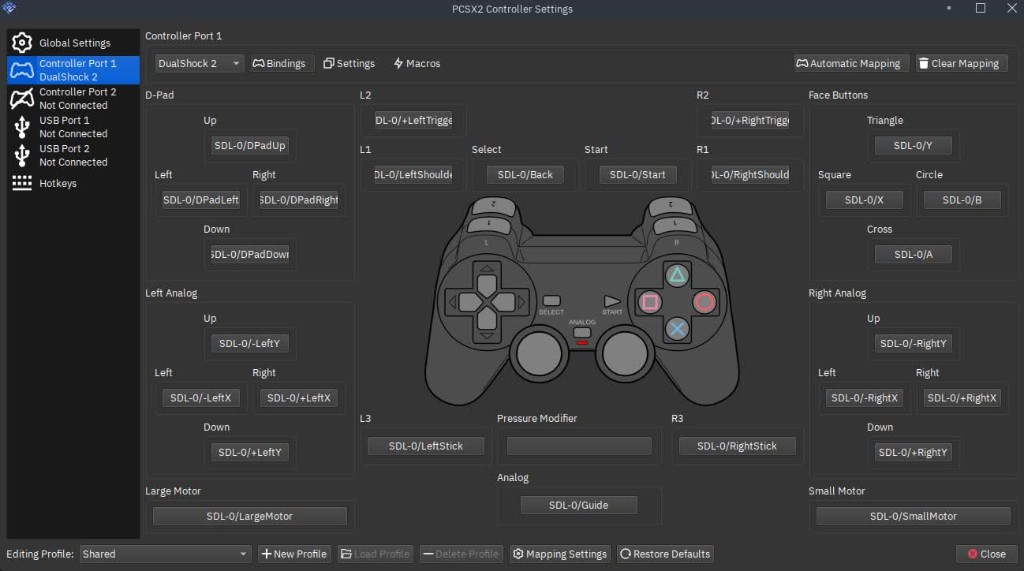
Controllers & tests
Map pads in the controller UI, then boot a simple 2D title to validate input before tackling something heavy like God of War.
Setup: controllers -
06
Compatibility notes
Before toggling rare hacks, look up your game serial and check compatibility write-ups. Often the answer is documented once.
Compatibility primer
Formats & speed
Games, images, and keeping FPS smooth
PCSX2 reads several image layouts. Performance is usually limited by CPU emulation first, then GPU fill rate when you push internal resolution or heavy effects.
Common game formats
- ISO
- Single-file dumps; convenient and widely supported. Prefer clean rips from trusted tools.
- BIN / CUE
- CD-style layout; keep the CUE next to the BIN. Some multi-track games need correct CUE metadata.
- CHD
- Compressed format; great for storage. Ensure conversion was done with PS2-appropriate settings.
- CSO
- Smaller than ISO; can add read latency. Fine for many titles, worth testing on stutter-sensitive games.
Performance checklist
- Power plan & thermals. Laptops on battery often throttle; plug in and use a balanced or performance plan while testing.
- Drivers. Update GPU drivers from AMD, Intel, or NVIDIA—not only Windows Update—especially for Vulkan and D3D12 paths.
- One knob at a time. If FPS drops, revert the last upscale, shader, or hack before chasing obscure toggles.
- Audio after speed. Crackle is often a symptom of unstable FPS; stabilize emulation first, then tune SPU latency.
More detail: Requirements · Support · Community tips
Safety & legality
Downloads, BIOS, and red flags
A few habits keep you out of the worst corners of the web and aligned with how the upstream project expects users to behave.
Avoid these traps
- Installers that bundle unrelated toolbars, “PC optimizers,” or cryptominers—close the tab.
- Sites that promise “BIOS packs” or “all regions in one zip”—the upstream project does not distribute BIOS.
- Old forum posts pointing to dead plugins; PCSX2’s modern UI uses integrated backends, not the plugin zoo of the 2010s.
- Random YouTube links with password-protected archives—verify checksums from the release when in doubt.
Checksums and mirrors. When release notes publish SHA-256 or other hashes, verify after download—especially on shared networks. Prefer the primary release channel over re-upload sites.
Game ownership. Emulation is a tool; you are still responsible for how you obtain discs or images. Many jurisdictions require that you own the media you rip.
Online play & mods. Treat third-party servers and trainers like any other community software: read permissions, back up saves, and don’t paste tokens into unknown clients.
Keep reading
More pages on this site
Shorter focused articles so you don’t have to scroll the home page twice—each opens in place with the same header and footer.
How it works
Four steps from download to first boot, with outbound links.
OpenGallery
Screens and UI context—useful if you’ve never seen the app.
OpenCommunity tips
Real-world hardware picks and lessons from long-time users.
OpenAll features
Renderers, saves, cheats, upscaling—full tile overview.
OpenSearch engines. This home page is written to be readable by humans and clear for crawlers: consistent headings, internal links, and plain language around PCSX2, PlayStation 2 emulation, BIOS, Vulkan, and compatibility—without keyword stuffing.
If something here disagrees with the upstream documentation, trust the maintainers’ sources first and treat this site as a curated index.
Deep guide
How PCSX2 approximates a PlayStation 2
The PS2 is not a thin client: it has multiple processors that ran in parallel on real hardware. A desktop PC has to schedule all of that work on fewer cores while keeping audio, input, and the emulated disc drive coherent. The sections below spell out what that means in practice—without turning this page into a computer science textbook.
Emotion Engine (EE) and the main CPU load
The Emotion Engine is the PS2’s main CPU. Game logic, many physics updates, and parts of the graphics command stream flow through it. When people say “PS2 emulation is CPU heavy,” they usually mean the EE and its tightly coupled vector units are expensive to simulate accurately. A modern GPU does not replace that work: it helps once commands reach the graphics synthesizer (GS), but the EE side still has to run first.
Clock speeds on paper (roughly 300 MHz for the EE) are misleading. Emulators spend far more than one host cycle per emulated cycle whenever they need to maintain correct ordering, handle exceptions, or synchronize with other chips. That is why a processor that looks “fast” for PC gaming can still struggle if single-thread performance is only mid-range: a large slice of PCSX2’s hot path does not spread perfectly across every core you have.
Vector units (VUs) and why some games spike
The VU0 and VU1 units accelerate math-heavy work—skinning, particles, effects—that games leaned on aggressively late in the PS2 era. Titles that pushed VU1 especially hard can show uneven frame times even when average FPS looks fine. If you open the performance overlay and see periodic dips, check whether you recently raised internal resolution or enabled aggressive blending hacks; those can shift work back toward the GPU while the CPU is still the long pole on many scenes.
Game-specific fixes in compatibility databases often mention VU-related options. Treat those entries as starting points, not religion: clone your settings profile, apply one change, test for ten minutes of real gameplay, then decide.
IOP, GIF, and “why menus feel lighter than gameplay”
The IOP subsystem covers disc access, controllers, memory cards, and many housekeeping tasks. Menus and light scenes may spend more time waiting on disc reads (or emulated read latency) than hammering the EE. In combat or open worlds, the balance flips. That pattern explains why some users see great FPS in UI and sharp drops in-engine—it is not always “misconfigured graphics,” sometimes it is the game’s own structure plus how aggressively you compressed the disc image.
Graphics synthesizer (GS) in plain language
The GS is the PS2’s video output chip. PCSX2 translates GS work into modern APIs: Vulkan, D3D12 on Windows, and Metal where applicable on macOS. The GS path handles draw calls, render targets, texture formats, and blending modes that do not map 1:1 to today’s GPUs—so you will occasionally see a game that needs a tweak on one backend and behaves on another.
Internal resolution scaling is the headline feature, but it multiplies fill rate and bandwidth. If you double resolution each axis, you roughly quadruple the number of pixels touched. That is why the setup page tells you to stabilize full speed at native or modest upscale before chasing 4K internal.
Interlacing, bobbing, and “shimmer”
Many PS2 titles output interlaced video. On a CRT that looked normal; on a progressive LCD it can look fuzzy or busy. PCSX2 offers deinterlacing modes and patches for some games. Prefer the least aggressive option that looks acceptable, because stronger filters can smear fine detail or add input feel latency in edge cases.
Texture preloading, hashes, and replacement workflows
Advanced users sometimes replace textures or apply filters. Those workflows depend on stable hashing and accurate rendering of the original UVs. If you dabble, keep archives of vanilla settings and expect to revisit them after major emulator upgrades—renderer changes can invalidate assumptions about what a “safe” pack contains.
Continue with Features and Requirements for hardware-oriented detail.
Audio & saves
SPU timing, memcards, and save states
Audio crackle is often a lag indicator. Saves are your progress insurance—understand both memory cards and save states before you invest dozens of hours.
Audio: stabilize speed before chasing latency
The SPU (sound processing) side expects the rest of the machine to keep a steady pace. When the emulator cannot deliver full speed, buffers underrun and you hear crackle or dropouts. Chasing “ultra low latency” in audio settings while the EE is overloaded is backwards: fix the performance bottleneck first—power plan, thermal limits, too-high internal resolution, bad dumps—then revisit latency sliders in small steps.
Bluetooth headsets add their own buffering on top of the emulator. For debugging, test with wired headphones once so you know whether the problem is PCSX2 or the audio stack.
Memory cards: folders, backups, corruption
PCSX2 exposes PS2-style memory cards as files. Back them up before experimenting with cheats, aggressive patches, or nightly builds. Copy the card file while the emulator is closed, store a dated zip somewhere boring—cloud or external drive—and you will never regret it after a bad hack or a crashed import.
If a game complains about insufficient space, remember that PS2 cards were small by modern standards. Some titles need two blocks free for temp writes even when the save looks tiny. When in doubt, create a fresh card in the UI and retry.
Save states vs in-game saves
Save states are snapshots of the entire emulated machine. They are brilliant for practice and retrying bosses, but they are not a universal substitute for memory card saves. Some titles expect specific data to be flushed through normal save paths; others break when you load a state from before a cinematic that advanced hidden flags. Use states as a convenience layer on top of regular saves, not instead of them, for long RPGs.
Dumps & BIOS
Images, serials, and region discipline
Clean dumps reduce “haunted” bugs. BIOS region families should match the discs you actually own—mixing regions is a classic source of confusing failures.
Why SLUS / SLES / SCUS codes matter
Retail PS2 software is identified by product codes. Compatibility notes, widescreen patches, and community threads usually reference those codes. When you search for help, include the code printed on your disc or shown in the dump metadata—not only the game’s marketing title. Two regions can differ in languages, copy protection edges, or default video mode, and the emulator path may not be identical.
Redump-style verification is the gold standard for asserting that your image matches a known-good checksum. You do not need to become a librarian, but if you downloaded an image from an untrusted place and see hangs at the publisher logo, verifying the dump should be on your short list before you touch renderer hacks.
Multi-disc games
Some RPGs span multiple discs. PCSX2 can swap discs from the UI, but your folder layout and filenames should stay consistent. Keep CUE sheets with multi-bin rips intact; missing audio tracks manifest as silent movies or soft-locks that look like emulation bugs.
BIOS files and regions
The emulator expects BIOS data you obtained legally from hardware you own. Region families (Japan, North America, Europe, and others) align with disc licensing. If the boot screen language or default video mode looks wrong, double-check that your BIOS set matches your disc library before you file a bug report.
Compressed images and stutter
CSO and CHD save disk space by compressing sectors. Decompression costs CPU time and can add latency on each read. Most titles are fine; a few streaming-heavy games are sensitive. If you see hitching that correlates with camera pans or new area loads, try an uncompressed ISO for a fair A/B test before blaming shaders.
We do not host BIOS or game data. Use Download for builds and FAQ for policy-style questions.
Windows · Linux · macOS
Platform notes power users actually use
Each OS ships different GPU drivers, windowing systems, and security prompts. The bullets below collect recurring advice from support threads—distilled, not guaranteed magic.
Windows
Install GPU drivers from the vendor (NVIDIA, AMD, Intel). Windows Update drivers are sometimes months behind on Vulkan extensions. Smart App Control and overzealous AV suites occasionally quarantine new PCSX2 builds—verify signatures and prefer the official GitHub release asset you downloaded yourself.
Fullscreen exclusive vs borderless can change pacing on high-refresh monitors. If frame pacing looks uneven, try the other mode once.
Linux
Wayland vs X11 still affects some input and vsync stacks. If controllers or frame pacing act oddly, testing an X11 session (or another compositor) is a valid bisect step. Package your distro ships may lag upstream; many power users run AppImage from GitHub for parity with bug reports.
Ensure your user is in the right input groups if pads are invisible to SDL—distribution docs differ.
macOS
Apple Silicon machines are fast but not immune to thermal throttling in fanless configs. Metal is the expected path; follow release notes for minimum OS versions. Gatekeeper may require you to allow the app explicitly the first run—use builds you downloaded from the project, not repacked DMGs from random blogs.
Laptops, MUX switches, and hybrid graphics
Many laptops route the internal display through an iGPU even when a discrete GPU exists. PCSX2 may still run on the dGPU, but copying frames for presentation can add latency or cap effective performance. Vendor control panels often expose a “high performance” toggle per app—set it explicitly for pcsx2-qt.exe or the Linux binary name you launch.
On battery, OS power policies downclock aggressively. For serious play, plug in, set balanced or performance mode, and elevate the laptop so intake vents are clear. Thermal throttling shows up as FPS that drifts downward after ten minutes—not always as an instant crash.
Tweaks & bugs
Patches, cheats, and how to file useful reports
Aggressive options can rescue one title and destabilize another. When you need upstream help, package facts the way maintainers consume them.
Widescreen patches and no-interlace
Community patches change aspect ratio or field rendering assumptions. They are fantastic when matched to the correct serial, and frustrating when applied blindly. Always snapshot your settings before enabling patches, and disable them first when bisecting a new graphical glitch.
PNACH cheats and ethics
Cheat files alter memory or timing. Treat unknown PNACH sources like unknown executables: read what they claim to do, keep backups, and never run them on saves you care about until you trust the source. Speedrunning and online communities often have explicit rules about tool-assisted play—this site does not endorse bypassing those rules.
Per-game settings and INI discipline
Heavy titles benefit from dedicated profiles: renderer, upscale factor, texture filtering, and cycle hacks if recommended. Name profiles after the game serial so you can find them six months later. When you upgrade PCSX2, revisit those profiles against release notes—defaults sometimes improve enough to delete old hacks.
What to paste in a GitHub issue
- Exact PCSX2 version string (stable tag or commit).
- Operating system and CPU/GPU model—not only “Windows 11.”
- Renderer (Vulkan, D3D12, Metal, Software) and internal resolution.
- Game serial and redump hash if you have it.
- Steps to reproduce from cold boot, not only from save state.
- Whether software renderer shows the same glitch (GPU isolation).
Issues belong on the upstream tracker. For workflow questions, start with Support on this site.
Glossary
Terms you will see in forums and release notes
Short definitions to keep reading GitHub threads and compatibility pages without tab-hopping.
- EE
- Emotion Engine—the PS2’s main CPU core that drives much of PCSX2’s load.
- VU0 / VU1
- Vector units; often implicated in performance spikes on effects-heavy scenes.
- GS
- Graphics synthesizer; work here maps to Vulkan/D3D12/Metal in PCSX2.
- IOP
- Input/output processor—disc, pads, memory cards, and lots of housekeeping.
- SPU2
- Audio subsystem; sensitive to unstable frame pacing.
- VSync / pacing
- Methods to align frame delivery with your display; can hide or reveal timing bugs.
- Software renderer
- CPU-heavy path useful to see if a glitch is GPU-specific.
- Internal resolution
- Resolution at which the GS is emulated—not always the window size.
- PNACH
- Cheat patch file format; load only trusted files.
- CRC / serial
- Identifiers used to match compatibility entries and patches to your disc.
- Stable vs nightly
- Stable tags are curated releases; nightlies (or PR artifacts) include the latest fixes and the latest regressions—use them when release notes or helpers ask you to verify a fix.
Playbooks
Scenarios: what to try first
Long-form “if this, then that” notes for the situations that generate the most repeat questions in community channels.
Black screen after the PS2 logo
Let the first run finish for at least two minutes—some titles compile pipelines or build caches. If it stays black, switch renderer once (Vulkan ↔ D3D12 on Windows, or try software renderer briefly) to see if the issue is GPU-specific. Disable widescreen or no-interlace patches for that serial. Confirm the dump matches a good database entry.
If software renderer works but hardware fails, update GPU drivers and retest before you assume the game is unsupported.
Audio crackle only in battles
Correlate with FPS drops. Open the OSD: if EE or GS usage pegs during crackle, you are simply not keeping full speed—lower internal resolution, close background capture, and check laptop power. If FPS is solid, reduce audio latency gradually rather than jumping to extremes.
Controller works in UI, not in-game
Some titles grab raw pad access differently than the Qt UI. Re-map inside the controller dialog, test the preview, then fully close and reopen PCSX2. On Linux, verify SDL sees the device. On Windows, disable Steam Input temporarily for a bisect.
Stutter that tracks camera rotation
Often GPU fill or texture bandwidth. Lower internal resolution one step, disable anisotropic exaggerations, and test again. If you use texture packs, remove them for a clean test. On HDD-based systems, move the image to SSD to rule out slow seeks on compressed formats.
HDR, wide gamut, and multimonitor
PCSX2 does not magically become a native HDR title. OS-level HDR tonemaps can shift gamma. If colors look washed or crushed, test in SDR once, single monitor, before you tune emulator options. Fullscreen on the wrong monitor in multi-head setups can also change vsync behavior.
Reading compatibility databases efficiently
Start from your serial, not from the game’s cover title. Read the latest comments for your exact region. Note which PCSX2 version the report used—five-year-old “playable” entries may be obsolete after renderer rewrites. When you contribute back, include hardware, build, and renderer to pay the knowledge forward.
Release notes as a habit
Changelogs for PCSX2 are dense because they reflect real fixes from contributors worldwide. Skimming them before you upgrade answers questions like “why did my shader cache reset” or “why does Vulkan require newer drivers now.” Pair changelog reading with a single-game retest instead of re-running your entire library blindly.
When you maintain multiple machines—desktop and laptop—keep a text snippet with the exact build string, renderer, and per-game hacks you rely on. Future you will thank present you after a clean OS install.
More Q&A
Common follow-up questions
Long answers on purpose—helpful for search snippets and first-time readers.
These expand on the FAQ page with extra context for search and newcomers. Open any card for the full explanation.
Will PCSX2 ever be “lightweight” on CPU?
Accuracy-focused emulation trades raw efficiency for correctness. HLE shortcuts that sound magical often break edge cases in lesser-known titles.
You should expect PCSX2 to reward fast single-thread performance and sensible settings more than it rewards wishful thinking. Older consoles are not inherently “easy” just because their MHz numbers look small next to a modern CPU.
Is upscaling the same as “HD remaster” quality?
No. Internal resolution increases sharpness for geometry in many games, but assets were authored for CRT viewing distances.
UI textures, post effects, and bloom may look sharper or harsher depending on filters. Some titles include post-processing chains that do not scale cleanly—community texture packs are optional, not required for a good experience.
Can I stream or capture gameplay?
Yes. Most creators capture the emulator window or use GPU vendor tools. Cap your bitrate sensibly, watch for color range mismatches (limited vs full), and test audio routing so chat apps do not steal the default device mid-stream.
If you see micro-stutter only while recording, the bottleneck is often the capture pipeline—not PCSX2 alone.
Do I need a BIOS per game?
Typically no—one legal BIOS set per hardware family you own, aligned with the regions of discs you rip. Some testing scenarios swap files, but that is advanced.
If a game refuses to boot, verify dump quality and region before you collect more BIOS files from dubious sites.
Why do people mention “cycle” or “EE cyclerate” hacks?
Some releases tied gameplay or timing to CPU load in ways that do not match real hardware pacing when emulation is too fast or too slow. Hacks adjust timing heuristics.
They can fix a specific title and harm another—apply only when compatibility guidance recommends them, then retest after emulator upgrades because underlying timing improves over time.
Is disc speed emulation important?
Sometimes. Games that stream audio or video from disc assume certain latencies. Running from SSD images is usually faster than a physical drive; most of the time that is fine, occasionally it exposes bugs.
If a cinematic desyncs, try another image format or consult notes for that serial before you chase graphics toggles.
What about netplay?
PCSX2’s core focus is faithful local play. Experimental tooling may exist in the wider community; expect rough edges and version skew.
Treat any third-party client as untrusted until you understand what it hooks and what data it sends.
How often should I update?
Casual players on stable builds can update when release notes mention fixes they care about. If you are mid-playthrough, finish a memory card save before jumping major versions.
Nightly users should expect to bisect regressions occasionally—keep a known-good build zip on disk.
Ready when you are.
No account. No paywall. Grab the build from the project’s releases.
Then follow setup below if you want a checklist.